
Answering and Managing Report Prompts
Instruction: Prompts often contain special instructions required for accurate results. Always read the on-screen text before making your selections.
Answering Prompts
- Click the report title. Prompts will load automatically.
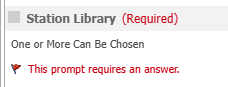
- Required Prompts: Some fields are mandatory. The report will not run until these are answered.
- Making Selections: Click an option in the Available area and move it to the Selected area by double-clicking or using the single arrow icon.
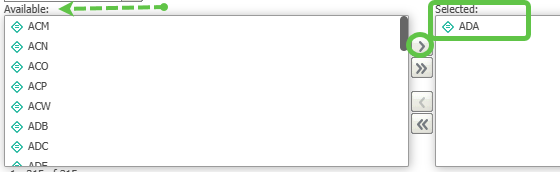
Tip: Use the double arrows to move all available options into the Selected area at once.
- Optional Prompts: If left blank, the report will include all data for that category. Use optional prompts to narrow your results.
- Display Options: In some prompts, you can checkmark items to ensure they appear as individual columns in your final report.
- Saving Choices: To reuse your current selections for future runs, check the box labeled Keep this prompt answer when the report is run again.
- Click Run Report in the lower-left corner.
Managing Finished Report Results
The PAGE-BY Feature: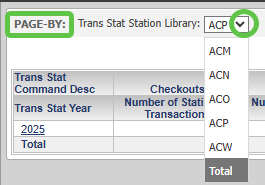
If your results include multiple libraries, use the Page-by dropdown at the top to filter the view to a specific branch or select TOTAL for a combined view.
Adjusting Prompts after Running
- Select the Report Home tab.
- Click the Re-Prompt icon to return to the selection screen without starting over.

Managing Grid Columns
- To Remove a Column: Right-click the column header and select Remove from Grid. (The data remains in the report objects, but is hidden from view).
- To Restore a Column: Locate the Report Objects panel on the left. Right-click the bolded attribute name and select Add to Grid.
Navigation and Logging Out
Finding Your Way Back
- Report Path: The breadcrumb trail at the top shows your current location (e.g., SEO Reports > Circulation).
- Wrong Report? Click SEO Reports in the breadcrumb path to return to the main folders.
- Home Screen: Click the Big Red M icon in the upper-left corner to return to the project selection page.

Logging Out
- Click the down arrow next to your username in the upper-right corner.
- Select Logout.