
Use these instructions to save your report results to your computer. Special settings are required if your report includes data for multiple branches or locations.
Exporting to Excel
- Click on the REPORT HOME toolbar at the top of the screen.
- Click the Export icon.

Understanding the PAGE-BY Feature: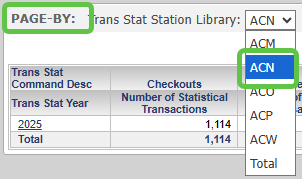
Many reports use "Page-by" to separate results by individual library or branch. You can toggle this on-screen to see a specific branch or the "Total" system view.
Exporting Multi-Branch Reports to Excel
If your report includes a main library and branches, you must select these options in the Export dialog box to ensure all data is included in the file:
- Export: Whole report is selected
- Excel with formatting
- Expand all page-by fields (This ensures branch data is not hidden).
- Place each page on a separate sheet

Note: If you are only running a report for a single library location, you do not need to check "Expand all page-by fields."
Once your selections are made, click the EXPORT button in the lower-right corner.
Exporting to PDF
- Click on the REPORT HOME toolbar.
- Click the PDF icon.

- To include all libraries/branches in the document, check the Expand all page-by fields box. This will place each branch on a separate page within a single PDF file.
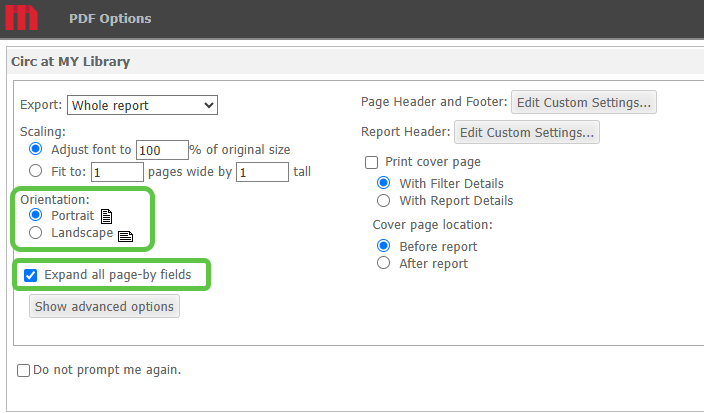
- Click the EXPORT button in the lower-right corner.