Purchase Alert Report Guide
The Purchase Alert is a BLUEcloud Analytics dossier that identifies patron demand to help guide your library's collection development and purchasing decisions.
- Running the Purchase Alert
- Navigating the Purchase Alert
- Exporting the Purchase Alert
- Finding Purchase Alert Titles in WorkFlows
Running the Purchase Alert
- Log in to BLUEcloud Analytics at https://bca.seolibraries.org.
- Navigate to: BCA OHIO > Shared Reports > SEO REPORTS > HOLDS > Purchase Alert.
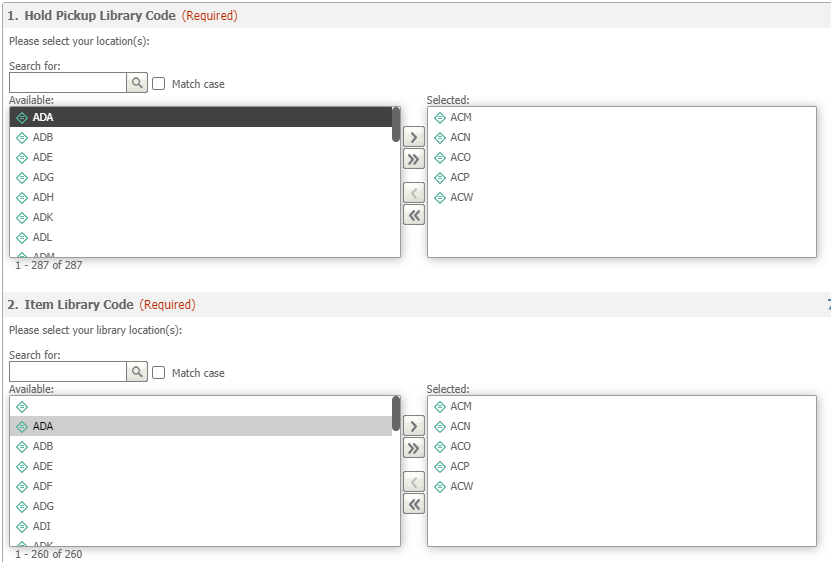
- When prompted, enter your library's three-letter code in both the Hold Pickup Library Code and Item Library Code fields.
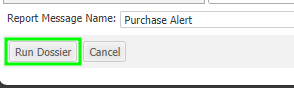
- Click Run Dossier.
Navigating the Purchase Alert
The Purchase Alert contains three distinct reports accessible from the left-hand navigation pane:
Local Holds
Displays items your library owns that currently have active holds placed by your patrons. High numbers here suggest a need for additional copies.
Items You Do Not Own
Displays items your patrons have requested that are not currently in your collection. These are prime candidates for new purchases.
Consortium Holds
Displays popular items across the entire consortium. This helps identify high-demand trends you may want to join.
Exporting the Purchase Alert
Because this dossier contains multiple report types, SEO recommends exporting individual sections to Excel rather than PDF.
- Hover your mouse over the upper-right corner of the specific report you want to save.
- Click the meatball menu (three dots) that appears.
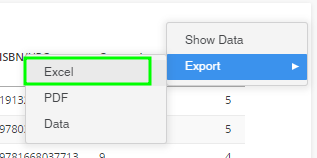
- Select Export and then choose Excel.
Finding Purchase Alert Titles in WorkFlows
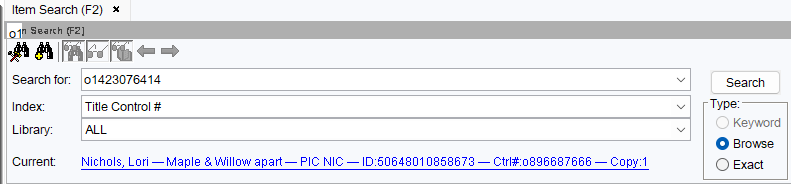
Use the Control Number from your exported report to quickly locate the bib record in Symphony.
- Open the Item Search wizard (or Modify Title wizard for TECH users).
- Change the Search Index to Title Control #.
- Enter the Control # into the Search for box.
- Click Search.